
Integrating Custom CSS with ZARAZ by Cloudflare (code injecting)

Adding custom CSS to a website can sometimes be challenging, especially when you don't have access to edit the source code directly. Fortunately, Cloudflare's ZARAZ offers a solution by allowing you to inject HTML and CSS code into your website. This guide will walk you through the process of using ZARAZ to modify your website's layout and appearance.
Cloudflare's ZARAZ is a powerful tool that allows you to manage and inject custom code into your website without needing to alter the source code. This can be particularly useful for adding custom CSS to hide elements or change their colours. Here’s a simple, step-by-step guide to help you get started.
Step-by-Step Guide
1. Set Up Cloudflare ZARAZ
We are assuming you already have a domain configured in Cloudflare. The first step is to set up Cloudflare ZARAZ on your website. Select the domain in your Cloudflare account and choose ZARAZ.
2. Create a New ZARAZ Rule
The next step is to create a rule to inject your custom CSS.
- Click on "Add new tool" and select "Custom HTML".
- Run through the setup, and before saving name your rule something descriptive, like "Custom CSS Injection" or "Custom JS Injection".

3. Add New Action
Now, you can add your custom CSS code using the rule you just created.
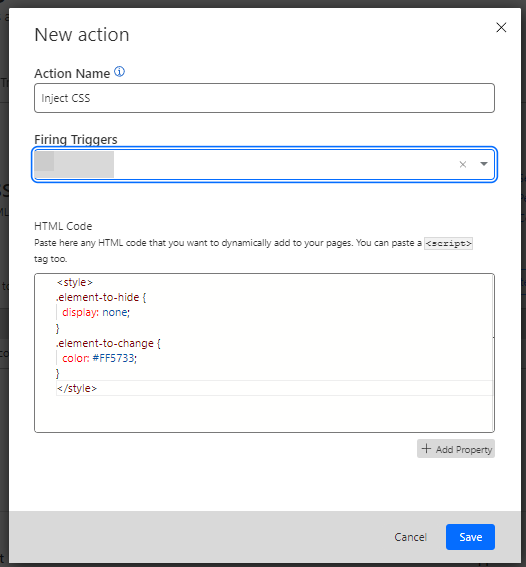
- In the action section of the rule, select "Create Action".
- Add a name for the action, example: "Inject CSS".
- Insert your custom CSS code within `<style>` tags. For example:
<style>
.element-to-hide {
  display: none;
}
.element-to-change {
  color: #FF5733;
}
</style>
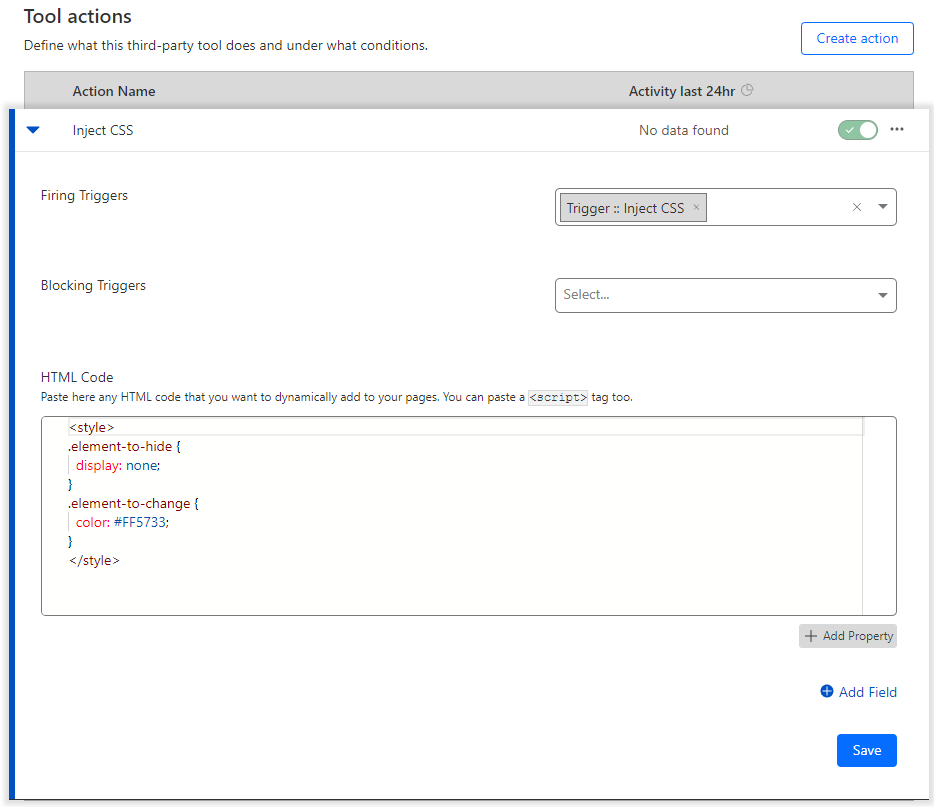
3. Save the changes to the rule.
3. Specify the Triggering Conditions
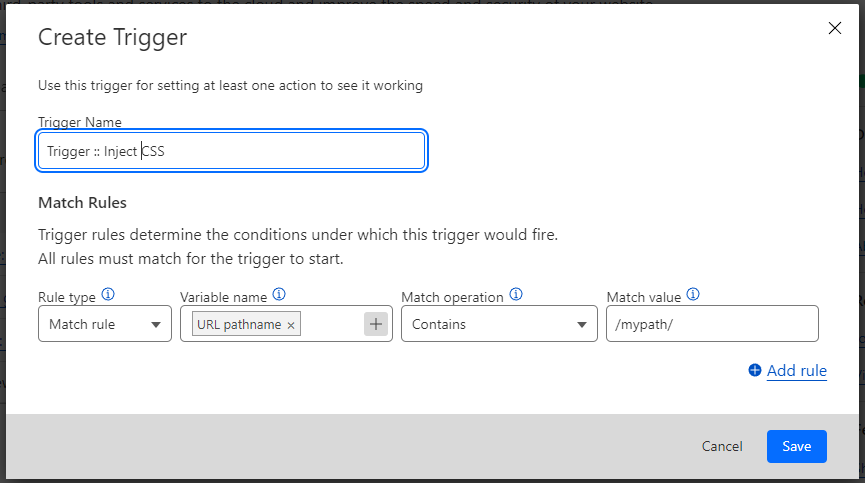
You need to define the conditions under which your CSS will be applied. This ensures that your custom styles are only injected where necessary.
- Choose the conditions that will trigger the rule (e.g., a specific page URL or particular elements on a page).
- Set these conditions carefully to target only the pages or elements you need to modify.
4. Test the Rule
After saving your changes, it’s important to test the rule to ensure it works as intended.
- Open your website and navigate to the pages where the rule should apply.
- Verify that the CSS changes are taking effect. Use browser developer tools (usually accessed with F12 or right-click and select "Inspect") to check the elements and ensure your CSS is being applied.
5. Fine-Tune and Troubleshoot
If your CSS isn’t applying correctly, you may need to make adjustments.
- Check for specificity issues or conflicting styles that might be overriding your CSS.
- Adjust your CSS selectors to ensure they are targeting the correct elements.
- Repeat testing until you achieve the desired outcome.
Final notes
Using Cloudflare ZARAZ to inject custom CSS is an effective way to modify your website’s appearance without directly editing the source code. This approach not only simplifies the process but also provides flexibility and control over your site's styling.